Sign in
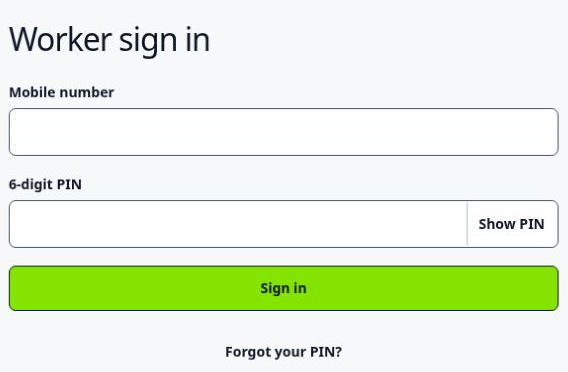
Open the worker app. Enter your mobile number. Enter your 6-digit PIN. Select Sign in.
Worker guide · quick start
Use SiteTick when you start work and when you finish work.
During the pilot, use your normal timesheet too. Stop only when your employer tells you to stop.
Every working day
Complete the steps in this order.
Open the worker app. Enter your mobile number. Enter your 6-digit PIN. Select Sign in.
Check the site name. Select Clock In. Allow location access. Wait for the confirmation.
If the site name is wrong or missing, select Site not listed?
Select Clock Out. Wait for the confirmation.
Do not clock out for lunch. If your break time is wrong, report it after you clock out.
SiteTick checks your location only when you clock in or clock out.
SiteTick checks location when you clock in or clock out. If the location is not clear, your manager can review the record.
Select English or Română on the sign-in screen. You can also change the language in the worker app.
Get help
Use the clock button as normal. Keep the app on this phone. Connect to the internet. Check that the pending event sends. Do not clear the app data or browser data while an event is pending.
Open History. Request the missing time. Your manager will review the request.
Open History. Request a correction. Enter the correct information. Your manager will review the request.
Select Forgot your PIN? on the sign-in screen. Enter your mobile number. Ask your manager for the new PIN.
Get support
Ask your manager about your hours, site or PIN. For a problem with SiteTick, email support@sitetick.co.uk.